
How to send a Glympse using an Android device
To send a Glympse, you can do one of the following:
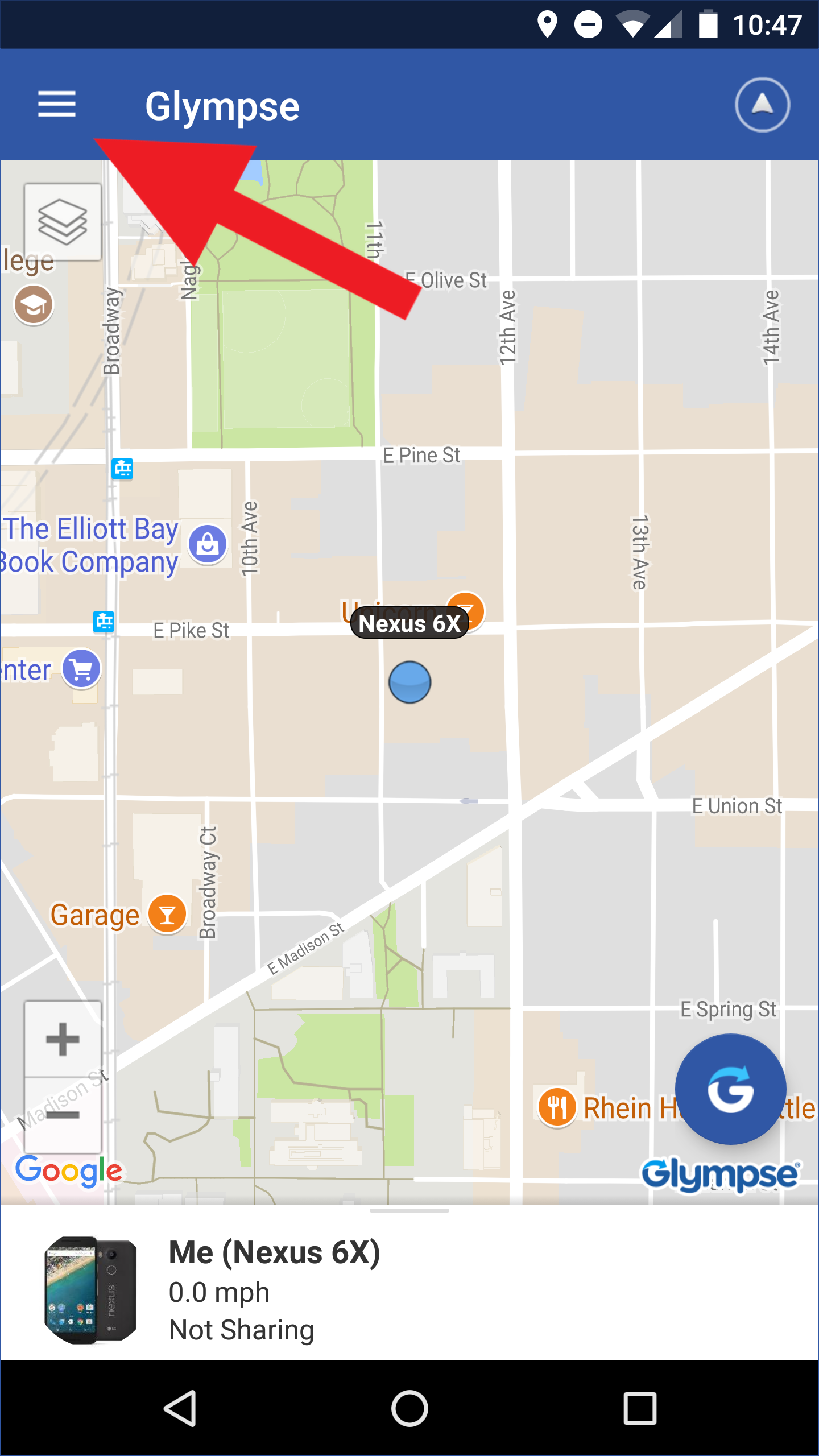
1. Tap on Hamburger menu in top left of the map screen.
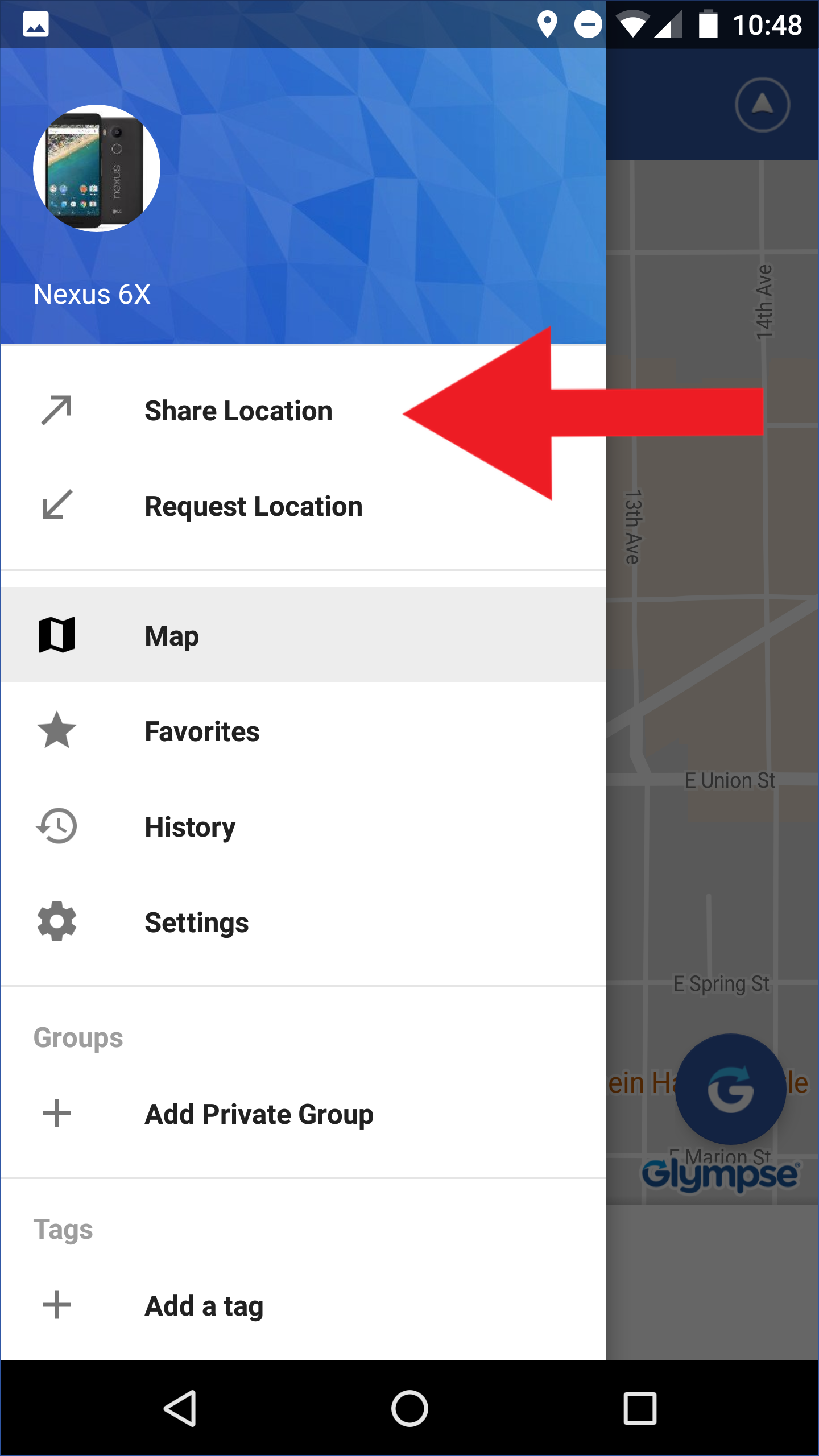
2. Tap Share Location
or:
1. Tap on Glympse icon in lower right of map screen.

2. Tap on "Share Location".

Or:
1. Locate the Glympse icon on your phone. Tap and hold on the icon.

2. Tap on "Share Location".

Then:
3. Choose a recipient(s) for your Glympse, then tap the back arrow in the upper left corner of the screen
Optional: Tap any of the other fields to set the duration of your Glympse, add a specific destination, or add a message to your Glympse

4. Tap the send icon in the upper right corner of the screen to begin sharing your location

5. You will receive a Completed message, if the Glympse is successfully sent.